You can register only if an existing user recommend you. You will then receive an email with a recommendation code. At this stage you will be able to register by visiting http://chess.scholder.ch and filling the form. Notice that you have to provide the same email address as the one which was used to provide you the recommendation code
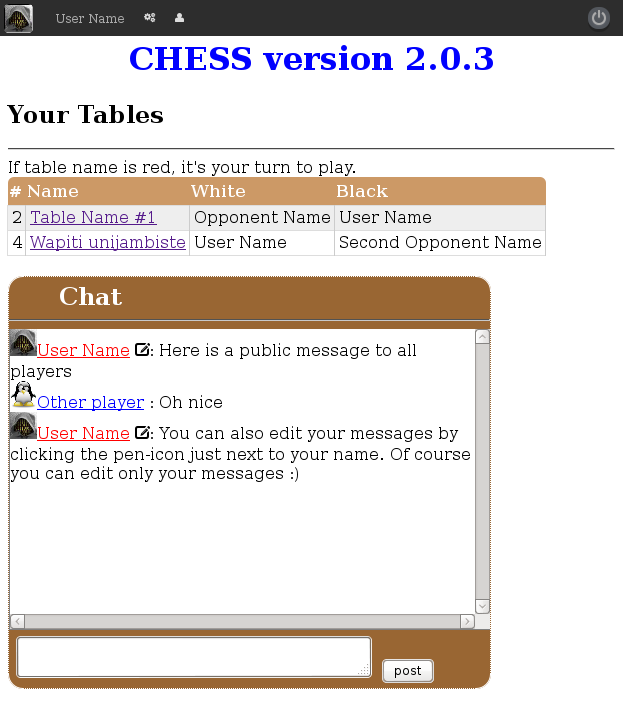
Once logged in, the user interface will always show a top bar with your avatar, your name, two icons buttons and a logout button. You then have two different user interfaces:
The top black bar displays the name of the logged in user as well as its avatar. It also have some icon-buttons.
The icon is the user-settings menu. Here you can change your password and your avatar. You can also recommend a friend. When you recommend a friend, just gives his email adress. An email will be sent to him with a recommendation code so that he can register on the login page. Once the user is registred and validated a new table will be automatically created with the person which recommends him.
The icon displays all the registred players with who you are not already playing with. In a near future, this will allows the user to create themselves new tables.
At this point (which is what come right after the login), you will see a list of all the tables where you are playing with. The list contains information on who is White and Black and the table name. If the table appears in red, this means that it's your turn to play. Just click on the table name to see the game on this specific table.
You will also see a "common" chat. Everybody can write in and messages are visible to everybody (which are registred). This means that also people with who you are not playing with can see your messages.
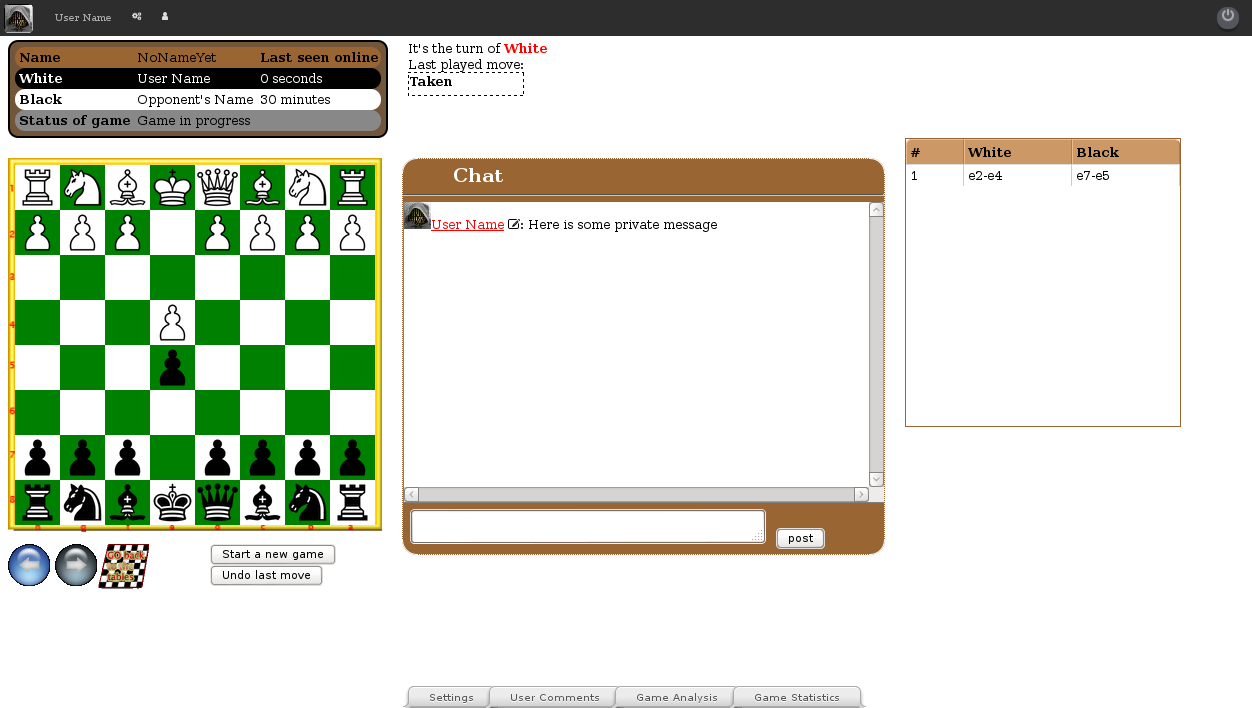
Once you have clicked on a table name, the user interface will then mainly display the current game
A private chat is also available and only the player with who you are playing with can see what you write.
You can use the arrow buttons  and
and  bellow the board to display the history of the game/moves. As a complement to this a table also show the list of every moves with the standard notation.
You can go back to the list of tables just by pressing the small chessboard icon (located bellow the board)  .
.
The bottom panel offers some tools/settings related to the table.
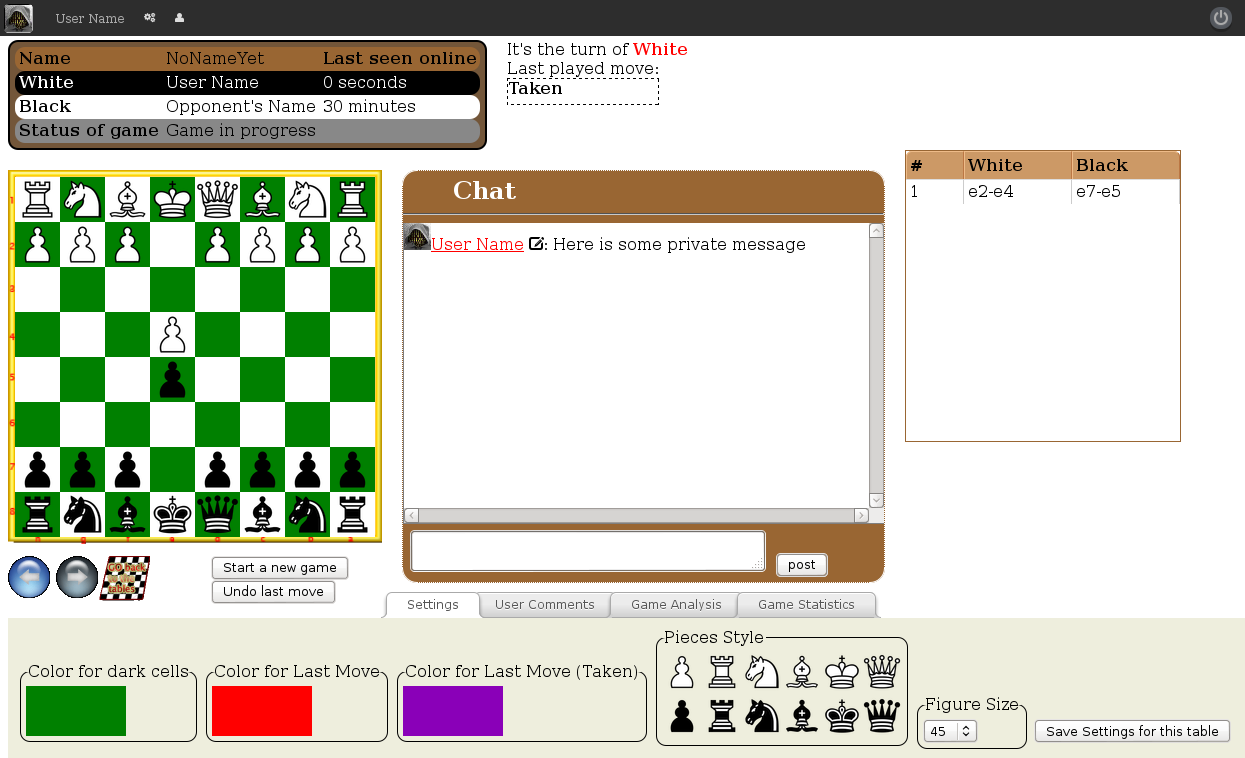
Here you can edit the color settings of the dark cells and the color of the rectangle which display last move. This is particularly useful to set a different color on all your table so that your brain can associate a color with the table and thus with your strategy. This will tend to avoid you to mix tables. You can edit the size of the pieces as well as the type of pieces.
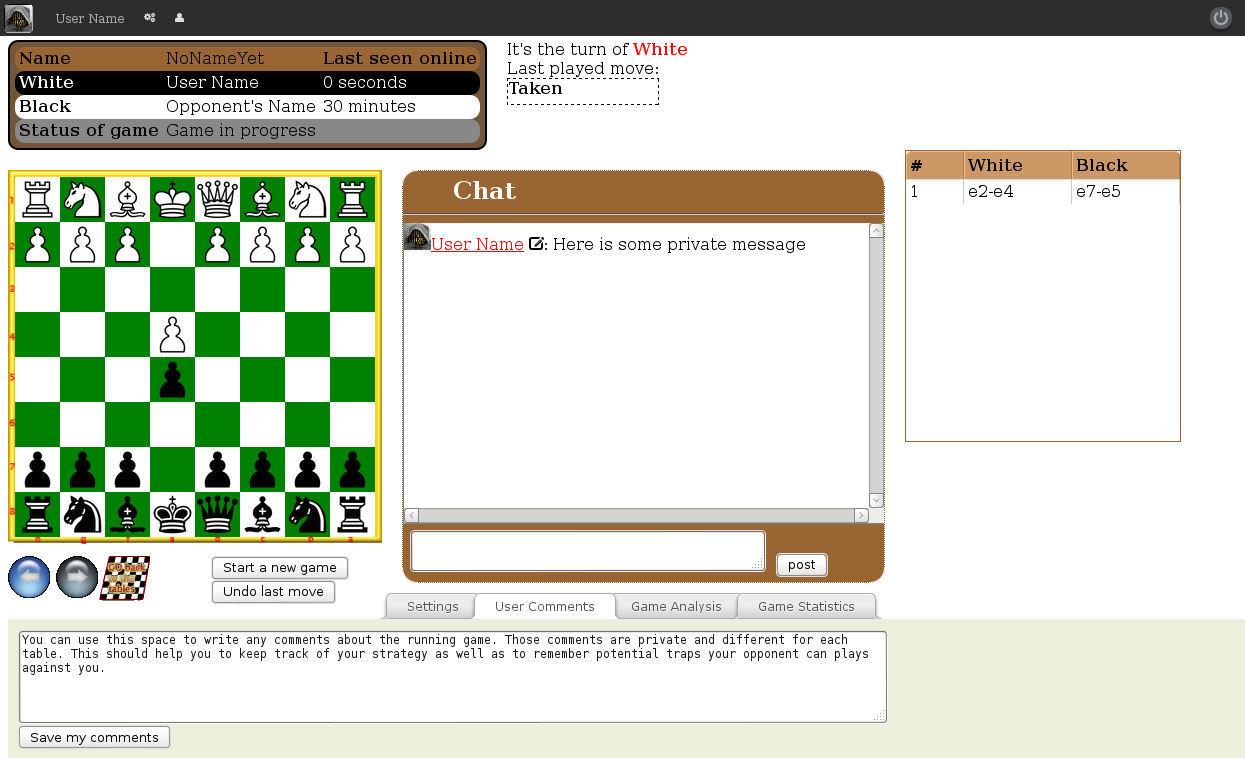
It's very difficult to remember strategy when you play on many tables in parallel. This panel offers you a textbox to write what ever you like to remember startegy, traps, sensitiv cells, move you are planning to do/to avoid, etc.
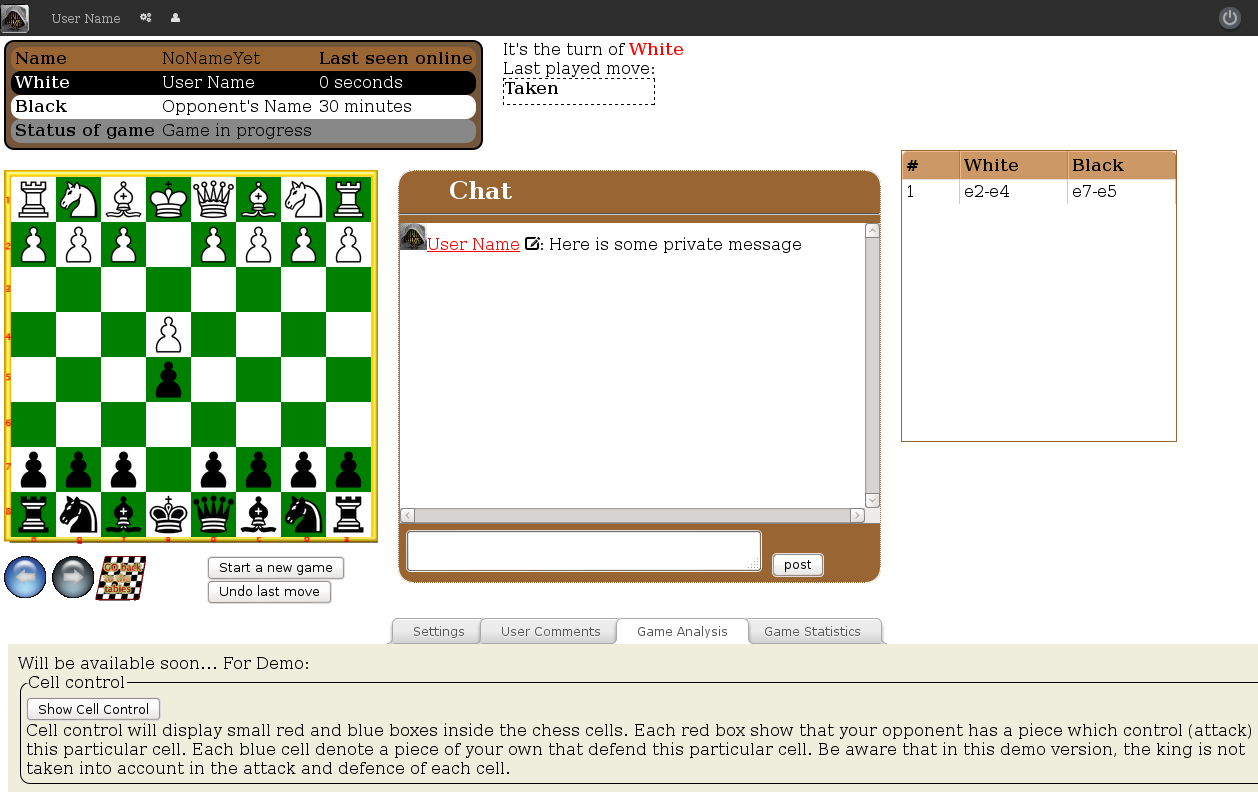
As it's hard to keep track of games and this tools allows you to quickly check the status of the game. By pressing the button the board will be filled with indications and a pie chart will display the distribution of the "power".
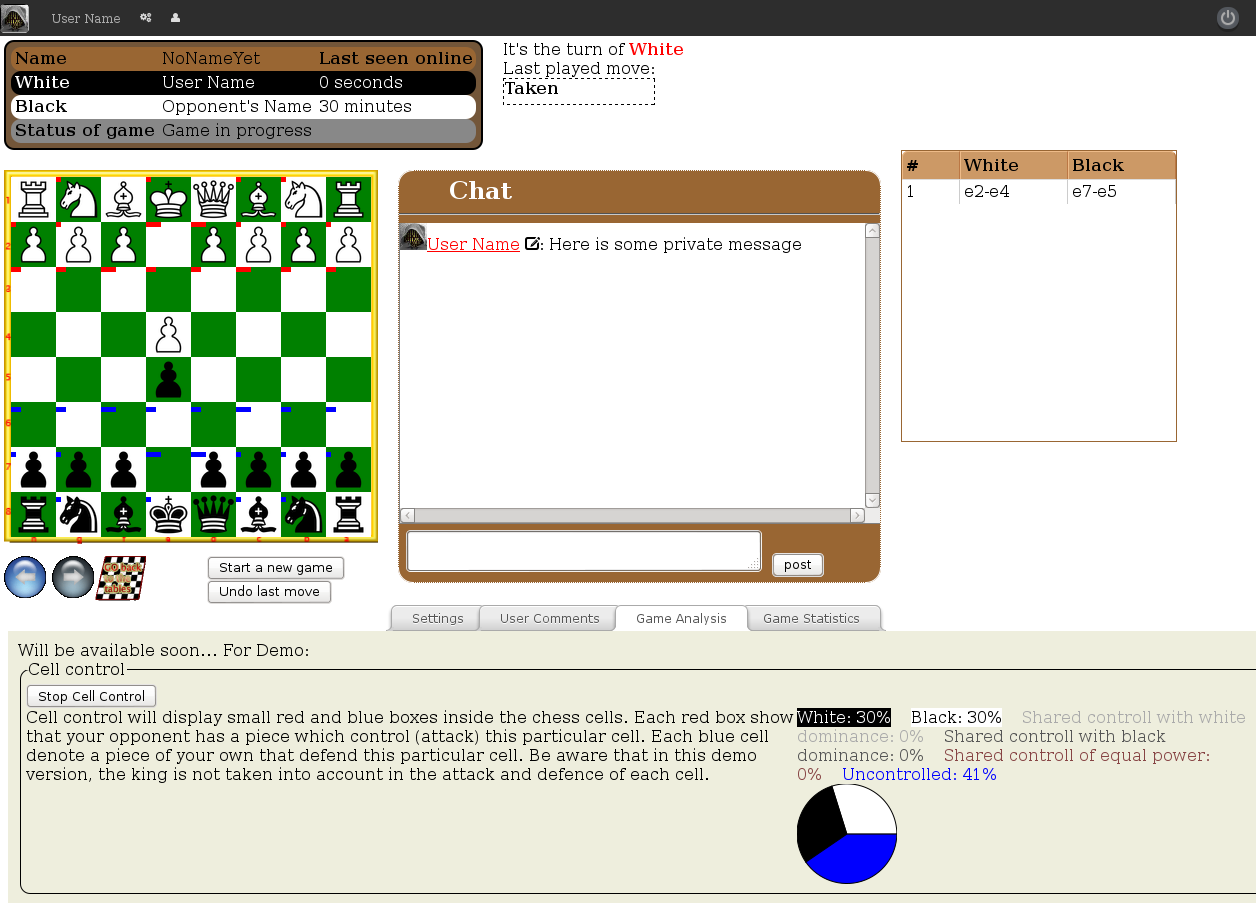
shows that one of the opponent piece control a specific cell. So if 3 block are shown it means that 3 pieces control/attack/defend the cell.
show that one of your own piece control/defend/attack a specific cell. Notice that for some reason the king is not taking into account in this counting.
Not yet finished. In the future will display the status win/loss/pat of the games on a specific table (ie.: with a specific opponent).